Tuesday, June 15, 2021

How to block random channel gift subs

Tired of Random Gifted Subs Showing Up for Channels You Never Watch?

If you're a regular Twitch viewer, you've probably experienced this at least once: a notification pops up out of nowhere saying someone gifted you a sub to a channel you've never followed, never visited, and have zero interest in. It feels random, a little intrusive, and it clutters your inbox with stuff that doesn't matter to you.

The good news? Twitch built in a simple, official setting years ago that lets you stop this completely. It's still working perfectly in 2026, and it takes less than a minute to enable. Once it's on, you'll only receive gifted subs and memberships from channels you actually follow. No more surprise notifications from strangers.

block random channel gift sub

Why Gifted Subs Happen in the First Place

Streamers and big gifting events often hand out subs to random viewers in the chat to boost engagement or celebrate milestones. It's generous, but it can backfire when those random gifts land in your notifications for channels you don't care about. The setting we're about to turn on quietly blocks those while still letting you enjoy gifts from the streamers you actually support.

How to Block Gifted Subs on Channels You Don't Follow (Desktop)

Follow these four quick steps on your computer or laptop:

Step 1: Log into your Twitch account and click your profile picture in the top right corner. A small menu will appear.

Step 2: Select "Settings" from that menu.
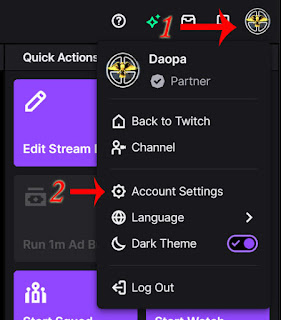
how to get to account settings on twitch

Step 3: In the Settings page, click the tab labeled "Security and Privacy."

Step 4: Scroll down until you see the section called "Block Receiving Gifts on Channels You Don't Follow." Flip the toggle to On.

block receiving sub gifts

That's it. Twitch will instantly apply the change, and future gifts from unfollowed channels will be blocked automatically.

Does This Work on the Twitch Mobile Apps?

Absolutely. The process is almost identical on both Android and iOS:

  • Tap your profile icon (bottom right on mobile).
  • Go to Account Settings.
  • Tap Security and Privacy.
  • Scroll to the same "Block Receiving Gifts on Channels You Don't Follow" option and enable it.

The setting syncs across all your devices, so one change covers everything.

What You Should Know After Turning It On

This setting only affects channels you don't follow. If a friend or a streamer you already follow gifts you a sub, you'll still receive it normally. You can always turn the toggle off later if your preferences change.

Pro tip: While you're in the Security and Privacy tab, take a quick look at the other privacy options. Many viewers also enable two-factor authentication and adjust whisper settings for extra peace of mind.

Why This Small Change Makes a Big Difference

Turning on this feature keeps your notifications clean, reduces inbox clutter, and makes your Twitch experience feel more personal and intentional. No more random distractions from channels that don't interest you. You'll focus on the creators you actually enjoy and support.

If you've been dealing with unwanted gifted subs for a while, give this a try right now. It really does make a noticeable difference.

Have questions about the setting, or did it work differently on your account? Drop a comment below and I'll help sort it out.

Wednesday, June 9, 2021

Can mods make other mods

Can Twitch Mods Make Other Users Mods?

mod user

If you are a Twitch streamer trying to build a solid moderation team for your growing channel, this question probably comes up early. Can your existing mods promote other viewers to moderator status too? It is a totally reasonable ask. You want to delegate without losing control, especially when chats start moving fast.

The short answer used to be a firm no. But Twitch made a smart update in December 2025 that changes the game for bigger communities. Here is the full picture, straight from the latest official rules.

Regular Moderators Still Cannot Add New Mods

Everyday moderators, the ones with the standard green sword badge, do not have permission to make anyone else a moderator. They are fantastic at handling chat, timing out troublemakers, and keeping the vibe positive, but assigning new mod powers is not on their list.

This design choice makes total sense. It keeps the ultimate responsibility with you, the streamer, so you can trust exactly who gets those elevated privileges.

The New Lead Moderator Role Changes Everything

Here is the exciting update. Twitch introduced the Lead Moderator role in late 2025. Lead mods get everything a regular mod has plus some serious extra authority, including the ability to add or remove regular moderators from your team.

They can manage the entire mod roster directly through the Roles Manager in your Creator Dashboard. It is a huge help for larger channels where one person cannot possibly handle every mod request.

Important note: Only you, the channel owner (broadcaster), can appoint someone as a Lead Moderator. Regular mods still cannot touch that level of power.

How to Actually Make Someone a Moderator on Twitch

You have two easy ways to grant mod status:

  • In chat (fastest method): Type /mod username right in your stream chat. Replace “username” with the actual Twitch handle. Want to remove them later? Just type /unmod username.
  • Through the Creator Dashboard (best for managing a bigger team): Head to your dashboard, click Community in the left menu, then open the Roles Manager. From there you can search users, assign regular mods, promote trusted ones to Lead Moderator, and adjust permissions all in one clean interface.

Lead Moderators use the same dashboard tools to handle regular mod additions and removals once you have given them that elevated role.

Why This Matters for Your Channel

Building a reliable mod team is one of the smartest moves you can make as a streamer. Good mods keep your community welcoming, protect your energy during long streams, and let you focus on creating great content instead of babysitting chat.

The Lead Moderator feature is especially useful once you hit consistent viewer numbers or run multiple streams a week. It lets you scale safely without handing over full control. Just remember: with great power comes the need for great trust. Choose your Lead Mods carefully. Look for people who already show good judgment, communicate well with you, and understand your community vibe.

Pro Tips for Managing Your Mod Team

  • Start small. Test regular mods first before promoting anyone to Lead Moderator.
  • Have clear expectations. Share your channel rules and moderation style with everyone on the team.
  • Use Twitch built-in tools. The Roles Manager shows exactly what each role can do, so there are no surprises.
  • Stay in the loop. Even with Lead Mods helping, check in regularly so you always know who has what permissions.

Bottom line? Regular mods cannot promote others, but Lead Moderators can. That one change makes managing a healthy Twitch community a whole lot easier. If you are ready to level up your team, head into your Creator Dashboard and start building that support system today. Your chat and your sanity will thank you.

Tuesday, June 8, 2021

how much money do streamers make per sub

How much money do twitch streamers make per sub?

A standard tier 1 twitch sub costs 4.99 which is split 50/50 with the majority of streamers. So streamers make $2.49 for each sub. Due note some larger streamers have a 70/30 split which will make them $3.49 for each sub.
first sub, first month 20% off

Additional factors include but not limited to geo location, currency differences, prime gaming and higher tiers which all are very different and hard to calculate.

Check out these guides covering this topic!


Monday, June 7, 2021

Can mods ban other mods

Can twitch mods ban other mods?

No, only the broadcaster can ban mods in their channels. If you want to ban a user in your chat room you can either click on their name and then press the ban button in the pop up window or use the chat command as follows.

Type: /ban [username] [reason]

You don't have to fill in a reason, that is optional.


Sunday, June 6, 2021

Can mods give vip to people

Can twitch mods give vip to people?
 
No, only the broadcaster can add the user role of vip to others on their channels. If you want to vip someone in your own channel you can simply use the chat command as follows.

Type: /vip [username]

You can also do this in the roles manager section in the dashboard. To get to the roles manager follow these simple steps!
Add VIP and show VIP Slots amount
  1. Go to the creator dashboard
  2. Click on the community section to expand it
  3. Then click on the "Roles Manager" option
  4. Press the Add New button, type the username of the account you want to add for vip and then press the + button to add the vip role. 

You can also see how many vip slots you have unlocked when in the roles manager and by clicking on adding in a new vip user role. See the above screenshot for a example of that occurance.

How do you get vip slots on twitch?

Streamers can get 10 VIP slots by completing the "Build a Community" achievement which is gain 50 followers and 5 unique chatters during a stream session. This will scale up as you have more unique chatters during your streaming.

What benefits do VIPs have in your twitch channel?

  • Special Badge
  • Can post links in chat even if links are disabled
  • Not effected by any rate limits, slow, sub-only or followers-only modes


If you block someone on twitch can they see your stream

Can Blocked Users Still Watch Your Twitch Stream? (Full 2026 Guide)

If you have blocked someone on Twitch, the most common question streamers ask is: can they still see your broadcast?

Yes. Blocking a user on Twitch does not prevent them from watching your stream. They can still view your live broadcast, VODs, and clips just like any other viewer. Blocking only affects their ability to interact with your chat.

What Does Blocking Someone on Twitch Actually Do?

When you block a user on Twitch, the following things happen:

  • They are immediately removed from your chat room
  • They can no longer send messages in your chat
  • They no longer appear in your viewer list
  • They cannot whisper you or interact with your channel points
  • They cannot raid your channel

However, they can still:

  • Watch your live stream
  • Watch your VODs and clips
  • See your channel page and panels
  • Follow your channel (though you will not see the follow notification)

How to Block Someone on Twitch (Step by Step)

  1. Click on their username in chat
  2. Click the three dots menu that appears
  3. Select Block

You can also block users from your Creator Dashboard under Settings → Moderation → Blocked Users.

When to Block vs When to Report

Blocking is perfect for minor annoyances or chat spam. For serious violations of Twitch Community Guidelines (harassment, hate speech, threats, doxxing, etc.), you should always report the user in addition to blocking them. Reporting helps Twitch take platform-wide action.

Pro Tips for Streamer Safety and Channel Management

  • Use AutoMod and Blocked Terms to catch problems automatically
  • Appoint trusted moderators who can help manage chat
  • Consider using a chat bot like Nightbot or StreamElements for extra protection
  • If someone is truly problematic, do not hesitate to report them to Twitch Support

Frequently Asked Questions

Can a blocked user still see that I am live?

Yes. They will still see your stream in their followed channels list and in category pages if they search for it.

Does blocking someone notify them?

No. Twitch does not notify the blocked user. They simply lose the ability to chat in your channel.

Can I unblock someone later?

Yes. You can unblock users at any time from your Moderation settings.

Does blocking work the same on mobile?

Yes. The process is almost identical whether you are on desktop or using the Twitch mobile app.

Final Thoughts

Blocking on Twitch is a useful tool for keeping your chat clean and positive, but it is important to understand its limitations. It protects your chat experience without stopping someone from watching your content. For serious issues, always combine blocking with a proper report to Twitch.

Keeping your channel safe and welcoming helps you focus on what matters most: creating great content and building a positive community.

Have you ever had to block someone on Twitch? How did it go? Share your experience in the comments below. I read every single one and it helps other streamers learn from real situations.

Stay safe and happy streaming!

Saturday, June 5, 2021

Can mods check who is banned

Can twitch mods check who is banned?

Yes, any mod for your channel can check to see if a user has been banned using the following chat command.

Type: /user [username]

This should pop up a window that will display if they are banned or not. Here is a screenshot example of a user that was recently banned on my channel.

user banned notification
You can see the banned notification at the bottom of the pop up, who did the ban and the date it occurred.This information can also be accessed in the mod view, to access the mod view for a channel by clicking on sword button next to the gear icon.  Here is a screenshot of what that looks like from my channel.
mod view button on twitch
Another way to directly access the mod view is by inserting the following into the URL structure.

Example: https://twitch.tv/moderator/daopa

Put /moderator/ before the channel name as noted in the example.  This is a great way to create a shortcut or bookmark straight to this very handy tool.

Now in the mod view you have a section called "MOD ACTIONS", all recent bans will be posted up in this location. If you click on the name in that section it will pop up a window showing details of what the user posted in chat, any timeouts, bans and mod comments.
mod view ui on twitch


It also has button options to unban, report, and quick whisper.