Wednesday, September 8, 2021

Does IPAD have twitch?

No, IPAD does not have the Twitch IOS app installed by default.  In order to get Twitch onto your ipad you will have to go to the apple app store and install it.

Ipad twitch button

Follow theses simple steps in order to get the Twitch App on your Ipad!

Step 1:

Click on the App Store button

Click on app store button

Step 2:

Click on the search feature on the app store

click on search option

Step 3:

In the text box enter Twitch then press the search button

enter twitch in the text box then press search button

Step 4:

Press the "Get" button for the Twitch Live Game streaming section that is also noted as editors choice. See this screenshot to verify what the app looks like in its current form on the app store.

Press Get Button

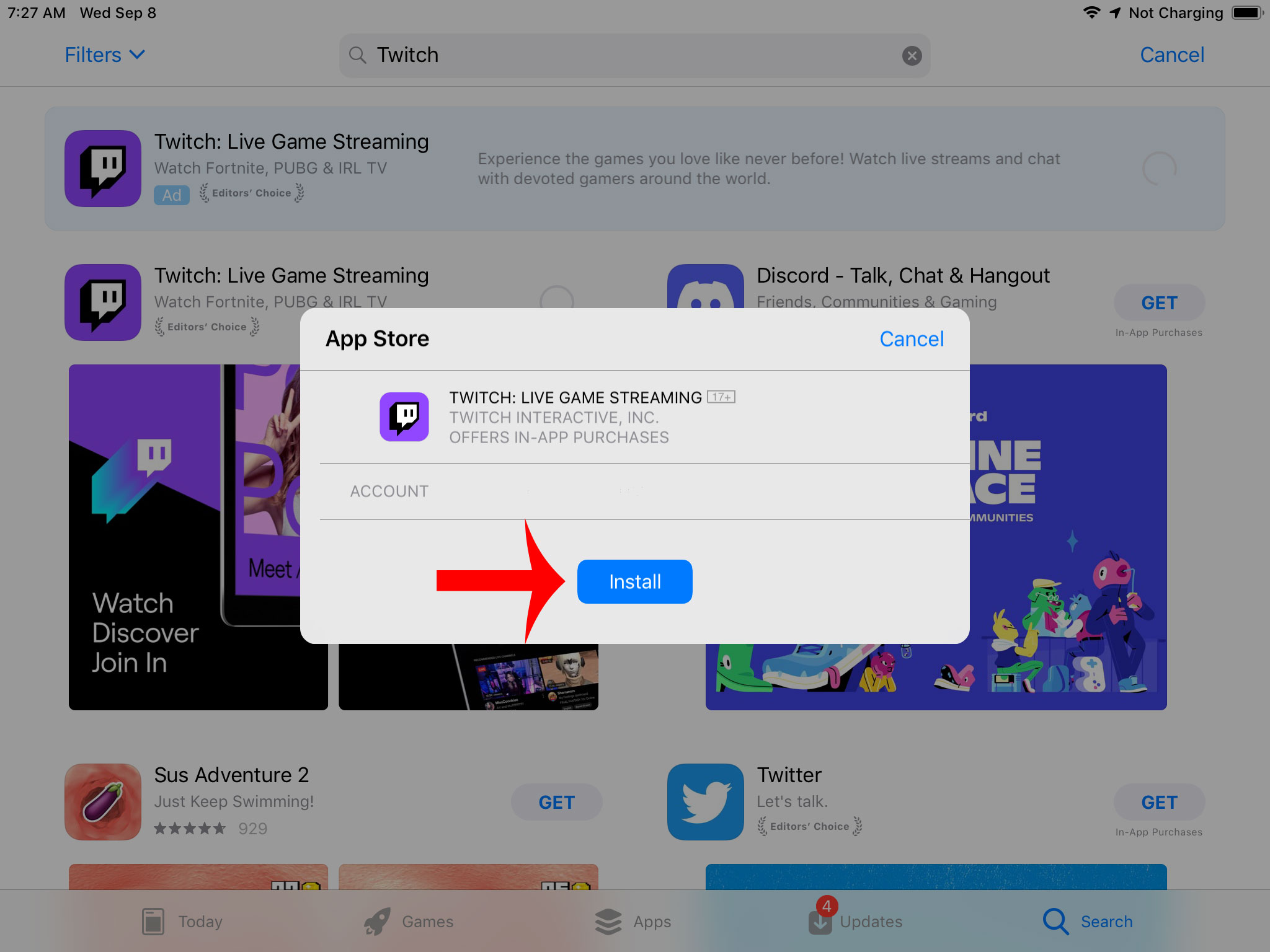
Step 5:

Press the install button

Press Install button

Step 6:

Once it finishes installing you can press the open button which will then start up the app.

Use Open button to start up twitch


Saturday, August 21, 2021

How to prevent hate raids, trolls using available tools from Twitch!

Shield Your Twitch Chat: The Ultimate 2026 Guide to Crushing Hate Raids, Trolls, and Spam

Imagine this. You are deep in the zone, laughing with your loyal viewers, cracking jokes, and building that perfect community vibe. Then bam. Your chat explodes with hateful spam, slurs, and coordinated attacks from bot accounts. It is the nightmare every streamer dreads. A hate raid or troll invasion can derail your entire stream in seconds.

The good news is Twitch has given creators more powerful built in tools than ever before to fight back. I have taken the best of the classic moderation strategies, verified them against the latest 2026 dashboard features, and added fresh insights including Shield Mode, phone verification, and smarter proactive defenses. Whether you are a new streamer or a seasoned pro, these steps will help you lock down your chat, protect your community, and keep the good vibes flowing.

1. Build a Bulletproof Blocked Terms List with Wildcards

Start by creating your own custom ban list of problematic words, phrases, and patterns. This is one of the fastest ways to stop trolls before they even get a foothold.

Head to your Creator Dashboard, click Settings on the left, then Moderation. Scroll down to AutoMod Controls and look for Blocked Terms and Phrases. Here you can add anything you never want to see in chat.

blocked terms and phrases

Pro tip: Use the wildcard asterisk * to catch variations. For example, *aaa*bbb*ccc* will block anything that contains that sequence no matter what comes before or after. You can also block spaces with patterns like * aaa * to catch sneaky attempts with extra spaces.

wildcard banned words

Do not forget to add your real name, address, phone number, and other personal info with wildcards. Set them to private. This stops doxxing attempts cold. Review and expand this list regularly based on what you see in your streams.

2. Activate Followers Only Mode to Stop Instant Spam

One of the simplest and most effective defenses is switching your chat to followers only mode. This means only people who have followed you for a set amount of time can type in chat. It instantly blocks brand new accounts and most raid bots.

You can enable it right from the chat settings cogwheel or use the command followers followed by a time such as followers 30m. In the dashboard under Moderation you will also find the full controls. Set the timeframe anywhere from minutes to months depending on how strict you want to be.

Watch your activity feed for sudden follow spikes with suspicious names. If you spot trouble, flip to subscribers only or emote only mode instantly. This gives you breathing room while you handle the situation.

3. Crank AutoMod to Maximum for Hands Off Filtering

AutoMod is your always on safety net. It holds suspicious messages for review instead of letting them hit the public chat. Set it to the strictest levels across all categories including the newer sexual harassment filter added in recent years.

automod max filter settings

Review held messages quickly in the Moderation Queue. You can approve good ones or let the bad ones stay blocked. Combine this with your blocked terms list for maximum coverage.

4. Require Verified Email and Phone Before Anyone Can Chat

Go to Dashboard then Settings then Moderation and find the Channel Privileges section. Turn on email verification or go even further with phone verification which was added specifically to fight bots and raids.

email verification

You can make verification required for all chatters, first time chatters, or accounts under a certain age in hours, days, or weeks. This single setting stops the vast majority of throwaway bot accounts in their tracks.

5. Add a Non Mod Chat Delay So Mods Can Stay Ahead

Give your moderators and bots a few seconds head start by enabling non mod chat delay. Set it to six seconds the maximum so problematic messages appear delayed for regular viewers but not for you or your team.

non-mod chat delay setting

Find this in Dashboard then Settings then Moderation under Chat Options. It is a lifesaver during fast moving raids.

The New Must Have: Shield Mode for Instant Lockdown

Twitch introduced Shield Mode a few years back and it has become the ultimate panic button for hate raids. One click or the shield command instantly applies a preset bundle of protections: followers only chat, email and phone verification, emote only mode, blocked hyperlinks, and more.

You and your mods can activate it from the channel page, Stream Manager, or Mod View. Customize your Shield settings once then flip it on the moment trouble hits. When the storm passes, deactivate it just as easily and return to normal.

Extra Smart Moves That Make a Huge Difference

  • Use the command uniquechat to stop duplicate spam messages. Turn it off later with uniquechatoff.
  • Set up hotkeys in your streaming software to instantly disable follower alerts, clear the chat with the clear command, or trigger a stream marker when a raid starts.
  • During any incident, drop a stream marker so you can review the VOD later, note usernames and phrases, and add them to your blocked list.
  • Keep your VODs unpublished by default. Go to Dashboard then Settings then Stream then VOD Settings and turn off Always Publish VODs. This gives you time to review and delete anything problematic before it goes public.
  • Check for and delete any malicious clips created during the chaos. You can also disable clip creation entirely in Stream settings if needed.
clear chat on twitch
stream marker button
how to unpublish vods

Final Thoughts: Stay Calm, Stay Consistent, Stay Safe

Hate raids and trolls thrive on chaos and reaction. By layering these tools blocked terms, verification requirements, AutoMod, followers only mode, chat delays, and Shield Mode you create multiple barriers that make your channel far less attractive to attackers.

Take a few minutes today to set everything up and test it. Build a quick panic button with hotkeys or a Stream Deck if you can. Most importantly, communicate with your community. Let them know you take safety seriously and that your chat is a welcoming space because of these protections.

You have worked hard to grow your channel. Do not let a few bad actors ruin the experience for the amazing people who show up to support you. With these updated strategies you can stream confidently knowing you are ready for whatever comes your way.

Stay safe out there and keep creating the content you love.

Thursday, July 15, 2021

Stream Summary from one of the biggest channels on Twitch - Asmongold

So recently one of the biggest channels on Twitch shared their stream summary page.  Asmongold was showing how much viewer traffic he received during his first final fantasy stream session.  It shows something very interesting that most people will never be aware of because normally the big streamers would never show these stats to the public.

Any how here is the screenshot of the stats for that day!

Asmongold Stream embedded on 3rd party websites

If you see the note I added to the screenshot in red, over 1.15 million views possibly came from external which is 3rd party embedding. That is almost 50% of total views from 3rd party embedding which is enormous.  You can see from the screenshot that they didn't include the external section that is under the "Channel" views on the stat page.
  • How to get twitch viewers - guides on everything you need to get your channel going and also has info on embedding, which as you can see is something that benefits even the biggest channels on Twitch.
Tuesday, June 15, 2021

How to block random channel gift subs

Tired of Random Gifted Subs Showing Up for Channels You Never Watch?

If you're a regular Twitch viewer, you've probably experienced this at least once: a notification pops up out of nowhere saying someone gifted you a sub to a channel you've never followed, never visited, and have zero interest in. It feels random, a little intrusive, and it clutters your inbox with stuff that doesn't matter to you.

The good news? Twitch built in a simple, official setting years ago that lets you stop this completely. It's still working perfectly in 2026, and it takes less than a minute to enable. Once it's on, you'll only receive gifted subs and memberships from channels you actually follow. No more surprise notifications from strangers.

block random channel gift sub

Why Gifted Subs Happen in the First Place

Streamers and big gifting events often hand out subs to random viewers in the chat to boost engagement or celebrate milestones. It's generous, but it can backfire when those random gifts land in your notifications for channels you don't care about. The setting we're about to turn on quietly blocks those while still letting you enjoy gifts from the streamers you actually support.

How to Block Gifted Subs on Channels You Don't Follow (Desktop)

Follow these four quick steps on your computer or laptop:

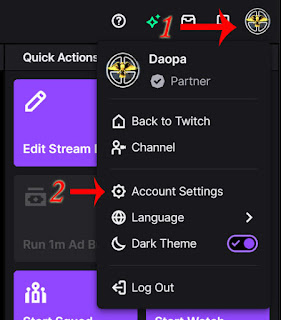
Step 1: Log into your Twitch account and click your profile picture in the top right corner. A small menu will appear.

Step 2: Select "Settings" from that menu.

how to get to account settings on twitch

Step 3: In the Settings page, click the tab labeled "Security and Privacy."

Step 4: Scroll down until you see the section called "Block Receiving Gifts on Channels You Don't Follow." Flip the toggle to On.

block receiving sub gifts

That's it. Twitch will instantly apply the change, and future gifts from unfollowed channels will be blocked automatically.

Does This Work on the Twitch Mobile Apps?

Absolutely. The process is almost identical on both Android and iOS:

  • Tap your profile icon (bottom right on mobile).
  • Go to Account Settings.
  • Tap Security and Privacy.
  • Scroll to the same "Block Receiving Gifts on Channels You Don't Follow" option and enable it.

The setting syncs across all your devices, so one change covers everything.

What You Should Know After Turning It On

This setting only affects channels you don't follow. If a friend or a streamer you already follow gifts you a sub, you'll still receive it normally. You can always turn the toggle off later if your preferences change.

Pro tip: While you're in the Security and Privacy tab, take a quick look at the other privacy options. Many viewers also enable two-factor authentication and adjust whisper settings for extra peace of mind.

Why This Small Change Makes a Big Difference

Turning on this feature keeps your notifications clean, reduces inbox clutter, and makes your Twitch experience feel more personal and intentional. No more random distractions from channels that don't interest you. You'll focus on the creators you actually enjoy and support.

If you've been dealing with unwanted gifted subs for a while, give this a try right now. It really does make a noticeable difference.

Have questions about the setting, or did it work differently on your account? Drop a comment below and I'll help sort it out.

Wednesday, June 9, 2021

Can mods make other mods

Can Twitch Mods Make Other Users Mods?

mod user

If you are a Twitch streamer trying to build a solid moderation team for your growing channel, this question probably comes up early. Can your existing mods promote other viewers to moderator status too? It is a totally reasonable ask. You want to delegate without losing control, especially when chats start moving fast.

The short answer used to be a firm no. But Twitch made a smart update in December 2025 that changes the game for bigger communities. Here is the full picture, straight from the latest official rules.

Regular Moderators Still Cannot Add New Mods

Everyday moderators, the ones with the standard green sword badge, do not have permission to make anyone else a moderator. They are fantastic at handling chat, timing out troublemakers, and keeping the vibe positive, but assigning new mod powers is not on their list.

This design choice makes total sense. It keeps the ultimate responsibility with you, the streamer, so you can trust exactly who gets those elevated privileges.

The New Lead Moderator Role Changes Everything

Here is the exciting update. Twitch introduced the Lead Moderator role in late 2025. Lead mods get everything a regular mod has plus some serious extra authority, including the ability to add or remove regular moderators from your team.

They can manage the entire mod roster directly through the Roles Manager in your Creator Dashboard. It is a huge help for larger channels where one person cannot possibly handle every mod request.

Important note: Only you, the channel owner (broadcaster), can appoint someone as a Lead Moderator. Regular mods still cannot touch that level of power.

How to Actually Make Someone a Moderator on Twitch

You have two easy ways to grant mod status:

  • In chat (fastest method): Type /mod username right in your stream chat. Replace “username” with the actual Twitch handle. Want to remove them later? Just type /unmod username.
  • Through the Creator Dashboard (best for managing a bigger team): Head to your dashboard, click Community in the left menu, then open the Roles Manager. From there you can search users, assign regular mods, promote trusted ones to Lead Moderator, and adjust permissions all in one clean interface.

Lead Moderators use the same dashboard tools to handle regular mod additions and removals once you have given them that elevated role.

Why This Matters for Your Channel

Building a reliable mod team is one of the smartest moves you can make as a streamer. Good mods keep your community welcoming, protect your energy during long streams, and let you focus on creating great content instead of babysitting chat.

The Lead Moderator feature is especially useful once you hit consistent viewer numbers or run multiple streams a week. It lets you scale safely without handing over full control. Just remember: with great power comes the need for great trust. Choose your Lead Mods carefully. Look for people who already show good judgment, communicate well with you, and understand your community vibe.

Pro Tips for Managing Your Mod Team

  • Start small. Test regular mods first before promoting anyone to Lead Moderator.
  • Have clear expectations. Share your channel rules and moderation style with everyone on the team.
  • Use Twitch built-in tools. The Roles Manager shows exactly what each role can do, so there are no surprises.
  • Stay in the loop. Even with Lead Mods helping, check in regularly so you always know who has what permissions.

Bottom line? Regular mods cannot promote others, but Lead Moderators can. That one change makes managing a healthy Twitch community a whole lot easier. If you are ready to level up your team, head into your Creator Dashboard and start building that support system today. Your chat and your sanity will thank you.

Tuesday, June 8, 2021

how much money do streamers make per sub

How much money do twitch streamers make per sub?

A standard tier 1 twitch sub costs 4.99 which is split 50/50 with the majority of streamers. So streamers make $2.49 for each sub. Due note some larger streamers have a 70/30 split which will make them $3.49 for each sub.
first sub, first month 20% off

Additional factors include but not limited to geo location, currency differences, prime gaming and higher tiers which all are very different and hard to calculate.

Check out these guides covering this topic!


Monday, June 7, 2021

Can mods ban other mods

Can twitch mods ban other mods?

No, only the broadcaster can ban mods in their channels. If you want to ban a user in your chat room you can either click on their name and then press the ban button in the pop up window or use the chat command as follows.

Type: /ban [username] [reason]

You don't have to fill in a reason, that is optional.