Monday, August 13, 2018

600,000+ Tune in for the start of Battle for Azeroth

At 6 PM Est time, the start of "World of Warcraft's - Battle for Azeroth" newest expansion launched and here are some screenshots of the numbers and top streamers on twitch!


Let start with overall viewers, it topped around 610,000 here is a screenshot from the Twitch directory.

world of warcraft bfa launch twitch
Click to enlarge picture.
With any large AAA Title, tons of streamers who usually do not play or stream world of warcraft all jumped in for the expansion launch. Here is a look at the top most streamers:

bfa top streamers list from twitch
Click to enlarge screenshot

Top  streamers for launch include the following:
  • sodapoppin - 84,750 viewers
  • Asmongold - 60,350 viewers
  • LIRIK - 31,170 viewers
  • ZeratoR - 29,728 viewers
  • TimTheTatman - 26,652 viewers
  • Reckful - 23,506 viewers
  • shroud - 21,415 viewers
  • AtheneLIVE - 16,513 viewers
  • Towelliee - 14,535 viewers
  • ungespielt - 7,612 vierwers

It is always amazing to see the viewership numbers for game launches like this Twitch. You can also view how much of a viewership hit some of these non wow streamers take by switching over to it for the launch window. As of 7:30 PM, overall viewership numbers have gone down to around 495,991 Viewers. I guess the core viewers are now busy playing the game and stopped watching streams.
Tuesday, July 31, 2018

Powerful Embedding Promotion

How embedding can be used to promote big events for your Twitch channel.

This past weekend Twitch had a major Overwatch League event and I noticed some of the various ways they used embedding advertising to promote the channel. For those of you who are not familiar with what embedding means its basically taking the channel video stream player and showing it externally outside of Twitch. A good example of embedding can be seen here on this blog, on the sidebar I embed my Twitch channel in the advertising section. You can also include chat as its own embed if you wanted to show that off.

So lets start with reddit, on numerous subreddits during the event they had a advertisement going which showed the stream as a embed. Here is a screenshot:

overwatchleague stream on reddit
This would show up as a reddit promoted post and as users went to the subreddits that had this advert going, they would be able to watch the stream inside of reddit.

Next up and most likely one of the best embedding options Twitch has in their portfolio is gamepedia. Here is a screenshot of the OverwatchLeague channel being embedding across the majority of the gamepedia wiki network.

overwatchleague stream on gamepedia
Even thou the event is over with that embed is still occurring which is extremely helpful when looking at how much channel views generation its generally doing. Lets take a quick look at some basic stats for this channel.

OverwatchLeague Stats, Followers, Views
The event took place on the 27th and 28th of July, on the screenshot I've added 2 black dots. Now look at what happened on Sunday, over 2 million views on a offline stream. And continued on to Monday another 1.2 million views mostly generated by Twitch's embedding of the channel on gamepedia. How interesting to see a big bulk of the views coming from embedding promotions outside of Twitch.


One more place that I've seen in the past Twitch used to promote a special event was on imdb. IMDB is owned by Amazon, its a movie-actor type of a database lookup website. I forgot to check to see if they had any promotional embed for the Overwatchleague channel.  But here is how they used it during a Call of Duty Black Ops announcement event.

Call of Duty Black Ops IMDB Embed

This was on the frontpage, top fold of the layout showing the channel as a embed.

Most likely they did additional promotion on facebook, twitter and other places but I didn't dig that deep. On facebook they do not allow 3rd party embedding, but on Twitter you can embed your stream.

Overall this shows how powerful embedding advertisement can be to promote your channel on Twitch. Check out my "How to get twitch viewers", guide for ways you can start taking advantage of embedding and other various tips that I have learned over the years of streaming.

Any questions or comments fill free to post below in the comment section.

Update 8/15/2018 - Noticed another embedded stream on r/twitch promoting Call of Duty, unlucky for them having a MATURE Filter enabled prevented the stream from autoplaying.

Here is a screenshot:


Additional examples of embedding, date of screenshots taken on 4/27/2021.


Alienware Arena embedding

Gaming.Lenovo.com embedding
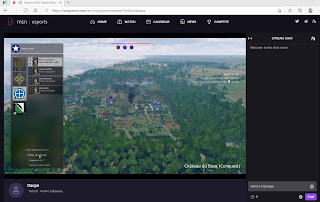
MSN Esports Hub embedding / aggrogator
Monday, June 25, 2018

Phishing scam streams

How to avoid getting caught in a phishing scam stream.

phishing scams live streamsSo no platform is safe from this type of a scam. A phishing scam is basically fraudulent attempts to obtain sensitive information like username, passwords and in the Twitch world of things it will include video game accounts and virtual goods.

I just recently hear of a Twitch viewer failing for a phishing scam. Here is what happened, they are fans of 'Old School Runescape' and noticed a streamer on Twitch with around 2,000 viewers playing that video game. This Twitch channel had a profile panel with information linking to a phishing website that looked exactly like the runescape forums.

So what happened was the viewer, checked out the Twitch's streamers profile, saw the link to what they thought was the official forums because the streamer wrote in the profile panel section they were quitting the game and giving away their items on the supposed linked forum thread. So the viewer thought oh cool, this streamer is giving away his stuff let me go check it out. So they clicked on the link that was in the profile, which was made to look exactly like the runescape forums. They put in their runescape account information and seconds later found themselves under a DDOS attack.  During that time frame their runescape gold, items were all stolen.

So here is what you need to always remember to prevent this exact sort of thing happening to you.
  • Do not click on any random links in chat, whispers or profile sections for channels.
  • Note even banners or streamer panels can have links pointing to external websites.
  • Preview All URLS by mousing over, if they are short URLs do not trust them at all.
  • If you trust the streamer and believe the links are ok, double check to make sure they are going to legitimate sites.  Sometimes hackers do extremely tiny changes to accounts such as changing out a link and just one link on a webpage leading to a phishing site.
  • Remember a old saying, if its to good to be true, it probably is, if someone is offering something as a giveaway or promotion that wants username information, emails and other things make sure to verify the legitimacy before supply any personal information.
Majority of phishing scam that occur on the twitch platform are basically private messages text offerings with shortURL links that go to phishing webpages. This was the first time I heard of a stream being used as a way to phish.


Do you know of any phishing attempts happening on the Twitch platform? If so please share them in the comments section below.

Embedding clips on twitter

Guide on how to embed twitch clips onto twitter.

So you want to put a twitch clip on twitter as a embed? Here is a simple way to do it by downloading the clip and reuploading it into twitter.  This method can also apply for facebook pages. So if you want to upload clips onto both twitter and facebook, substitute step 3 with posting on facebook, its very similar.


Step 1.

Go to the clips section on the dashboard and select clips of my channel.

Clips section on dashboard

Here is a URL shortcut ( https://dashboard.twitch.tv/u/STREAMNAME/content/clips/channel )  to this section, just make sure to insert your channel name in the STREAMNAME spot.

Step 2.

Click on the download button next to the clip you want to save. Make sure to save the video clip to a location you can easily find such as your desktop.

Clips download button

Step 3.

Now that you have your video clip downloaded, you can use it to upload into twitter, which will create it as a embed. Go to twitter, then to tweet creation window and click on 'Add photos or video' button, select the video clip file and upload it. Write out a tweet description with your hash tags and tweet it out.

twitter tweet window with video embed


Update - Twitch now has the correct twitter card information for clips, so it automatically embeds and links back to your twitch channel. You can use the clips URL and just put that into a tweet and it should work. So you will have to decide either on downloading and re-uploading or just using the share to tweet link.

I recommended to keep downloading your clips and then uploading them into twitter.  Using twitter's video system is better for growing and discovery opportunities on that platform. Social media platforms like facebook and twitter generally rank content better if its on their website, not embeds or links to other sites.
Sunday, June 17, 2018

how to get twitch viewers

Guide on how to get twitch viewers for your channel.
One of the hardest aspects of streaming on a large platform like Twitch is acquiring viewers. Here are some tips, guides and other helpful information to tackle that problem.  We will be sharing traditional and non traditional ways for getting viewers on twitch.

more twitch viewers
Guide List:
  • The basics to viewership building - this guide includes the generic methods for getting more viewers.
  • Luck Factor -  covers game day launches, friends with benefits, rule breaking and other topics.
  • Embedding - one of the most powerful ways to obtain viewers is by embedding and syndication. 
  • Crowd Sourcing - getting viewers to contribute 
  • This guide overs the basics in getting the embed code for your channel.
    • Wordpress - covers how to put your stream on a wordpress website.
    • Blogger - covers how to embed your stream on blogger / blogspot.
    • Advanced Embed Code options - lists more parameters and settings for embedding.
    • Twitter - this guide is how you can embed your stream inside of twitter. Twitter users will see a video player window to which they can press play on and your stream will start showing up inside of twitter.  This is extremely powerful if used correctly with the right hashtags.
Other key information:
  • Reddit - one of the biggest forums / discussion websites in the world. This is a huge traffic potential for any streamer. If you primary in one type of game and they have a subreddit, make sure to visit that subreddit and contribute to the discussion. If the subreddit allows videos and stream posts make sure to create one for your channel. Follow the rules do not just randomly post your link as a dump and run.
  • Youtube - every streamer needs to be on youtube, make sure to post your highlights and vods to your youtube channel.
  • Facebook - create a fan page for your channel on facebook, make sure to post video clip highlights, events and other important information for your channel. More detail guide under construction.
  • Steam Group - create a group on steam for your channel. More detail guide under construction.
  • Discord - get a discord server setup for your channel. A great way to continue the chat and community off of Twitch. More detail guide under construction. 
  • Free Game Keys - guide on how to sign up for free game keys via various specialized platforms. 

Discontinued Suggestions and Info:

  • Gamepedia - guide about how Twitch is using their wiki network to generate views for channels. Update: 7/26/2019 --  Gamepedia has stopped promoting twitch streams as a autoplaying embed on their wiki platform.  Gamepedia is also not part of Twitch/Amazon anymore since the start of this year.
    • Top Game Influencer - if you are a affiliate or partner, you will want to read that news post since a majority have no idea this is occurring in the background. 
    • Free Channel Traffic / Free Views - detail guide on how you can use gamepedia to grow your channel.
Saturday, June 16, 2018

How to make twitch emotes

Guide on how to make twitch emotes for your affiliate or partner channel.

Emotes are tiny images that show up in chat when subscribers use specific commands. Creating very unique emotes is a great way to add value to your channels sub.

Here are some beginner steps on creating custom emotes for your channel on twitch.

Step 1

You need a program like Adobe Photoshop or GIMP to get started. GIMP is free to use and can find it at the following URL: https://www.gimp.org/downloads/

Step 2

After getting a program to create emotes, you need to know some of the rules and guidelines for emotes on the twitch platform. Here is a quick rundown list:
  • Image needs to be in a .png format
  • Need to create 3 PNG files for each emote in different size formats
    • 28px x 28px
    • 56px x 56px
    • 112px x 112px
  • File size can not be over 25kb.
  • Background needs to be transparent
  • Follow Twitch Community Guidelines and TOS
    • Do not create images that intend to harass, hate, have extreme political phrases, are vulgar, contain drugs, sex and any sorts of nudity
  • Rules / Restrictions
    • Animated Gifs are not allowed
    • Single Letters are not allowed unless its part of branding
    • No emotes based on Twitch global emotes, expect for Kappa or VoHiYo derivatives.
Step 3

Open up the program you have to create emotes and start with a canvas size of 112px x 112px or larger. Think of creative elements that encompass your streaming community and start creating a emote based around that idea. Create a color palette that you will use for all your emotes in the future. Palette should be similar to your brand logo image to keep it consistent  and recognizable.

If you are not very creative in this department think about using a 3rd party.

Step 4

Once you have created the emote, saved it in the 3 different required formats with a transparent background, now it's time to submit the emote to twitch. Go to your dashboard, then click on Affiliate / Partner, then Emotes.


Step 5

Upload your emote's 3 resolution sizes, create a unique code and then submit.


That's the basics, the hardest part of emote creation is the creative phase. Thinking about unique emotes that stand out for your brand and community is very challenging. But it doesn't hurt to see what other streamers have done for emotes. Maybe they will inspire similar emotes styles that you can use for your channel.

How to twitch prime sub

Guide on how to use your twitch prime subscription.

Twitch prime allows you to subscribe to a channel for a month. The channel has to be a affiliate or partner level in order to have the sub button option. Here are the steps needed to use your twitch prime sub.

Step 1

Visit a channel that is a partner or a affiliate. For this example I will be using my stream at twitch.tv/daopa.

daopa channel page

Step 2

Click on the button labeled subscribe at the top right.

twitch sub button

Step 3

Click on the "Subscribe Free" button

subscription options on twitch

Step 4

After pressing and completing the purchasing of the subscription, you have to refresh the web browser in order for the sub to initialize. Press F5 or the refresh button on your browser.

Additional Option available:You will have a share button available that lets you send a text message in chat announcing your subscription.

Note on Twitch Prime subs, they do not auto-renew, you have to do these same steps every 30 days.

Status of current subscriptions can be seen on your subscription page, the URL is http://twitch.tv/settings/subscriptions
sub page
For more information on how to acquire a prime sub, check out our previous post on Twitch Prime.